
Accessing the contact list
You can access the contact list from the top menu, by clicking on Contacts:

Elements of the contact list
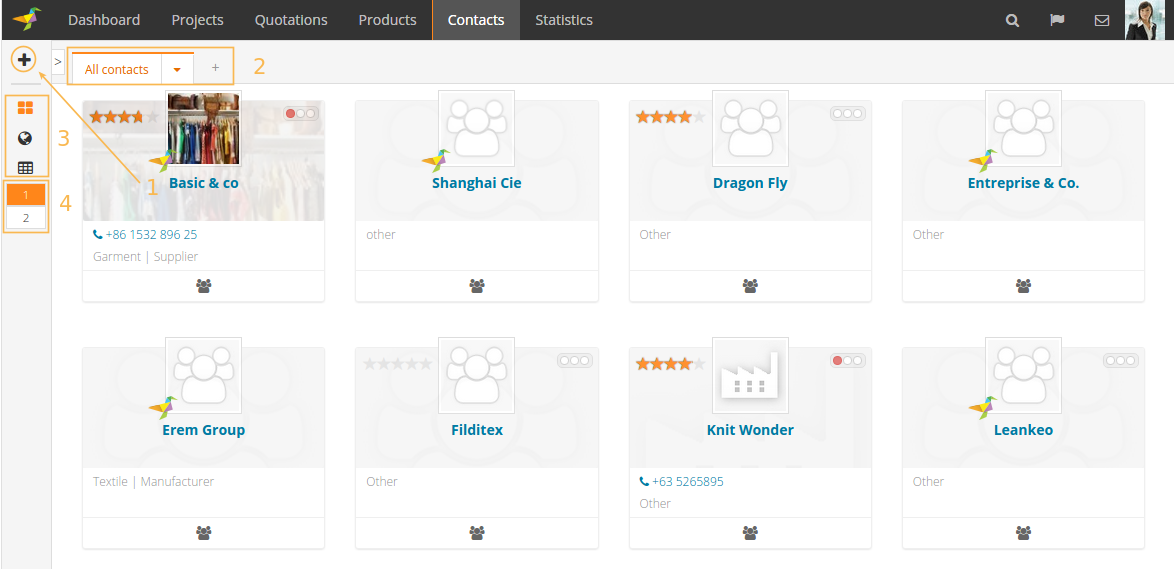
The contact list follow the usual Winddle structure for lists:
- Click here to access the new Contact form to add people, companies or factories to your company contact book
- From here, you can create filtered views and switch between them
- Click on the icons to access the different views (list, map and spreadsheet)
- This is the pagination box - it only appears when there is more than a single page of contact to display based on the current filters.
Filtering contacts
Change the filters/sorting of a filter view
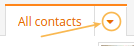
To change the filters that apply in any filter view, click on the down caret icon to expand the filter view definition:
You'll then be able to select a group of fields relevant for contacts (the actual list will depend on the fields you have activated), then a specific field and finally you'll be able to enter a value (or other settings, for specific fields).
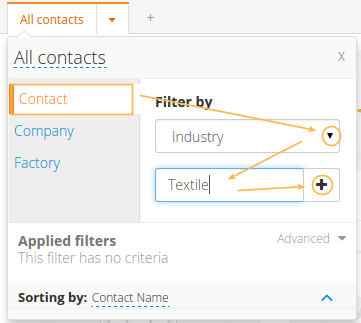
Click on the add button (plus sign) and the filter will be added to the list of filters:
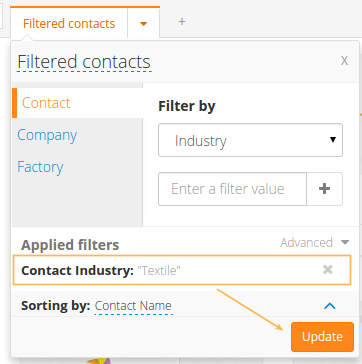
You then need to click on the "Update" button to apply this new filter.
Note that the name of the filter view has automatically changed now that it contains a filter - it no longer will display all the contacts, only those matching the filter.
In the filter box, you can also update the sorting used for the contacts - change the sorting, then click on update.
By clicking on the "x" next to the filter you will be able to remove it.
Create a new filter view
To create a new filter view, click on the + sign at the end of the list of currently created filter views:

After clicking, a new filter view tab will be added. It will not be saved until any changes have been made to it (sorting, list of filters, etc.).
Note: to switch to this newly added tab, click on it or open it and click on "Use this view".
Removing unused filter views
To remove a filter view, open it as if to edit the filters/sorting and click on "Remove this view".
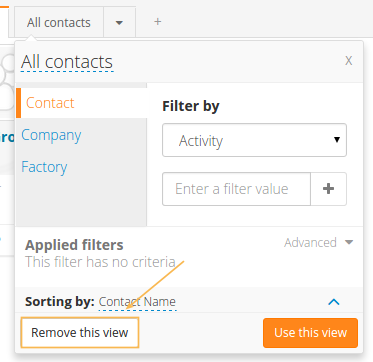
Note: it's not possible to remove the last filter view.
0 Comments