
What's the purpose of using comments?
Comments is a straightforward way to communicate with your partners on specific Winddle objects. Winddle allows to start discussion with your partner on a project line, a specific chekpoint or a document.
To clearly track shared information, a posted comment cannot be removed.
Every new comment posted on a project line will be displayed in its activity feed and will generate a notifications for concerned partners according to their user settings.
Add a new comment
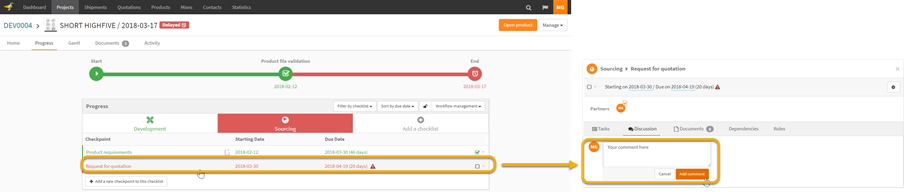
On a checkpoint
To add a new comment on a checkpoint, open the checkpoint details and open its discussion tab.
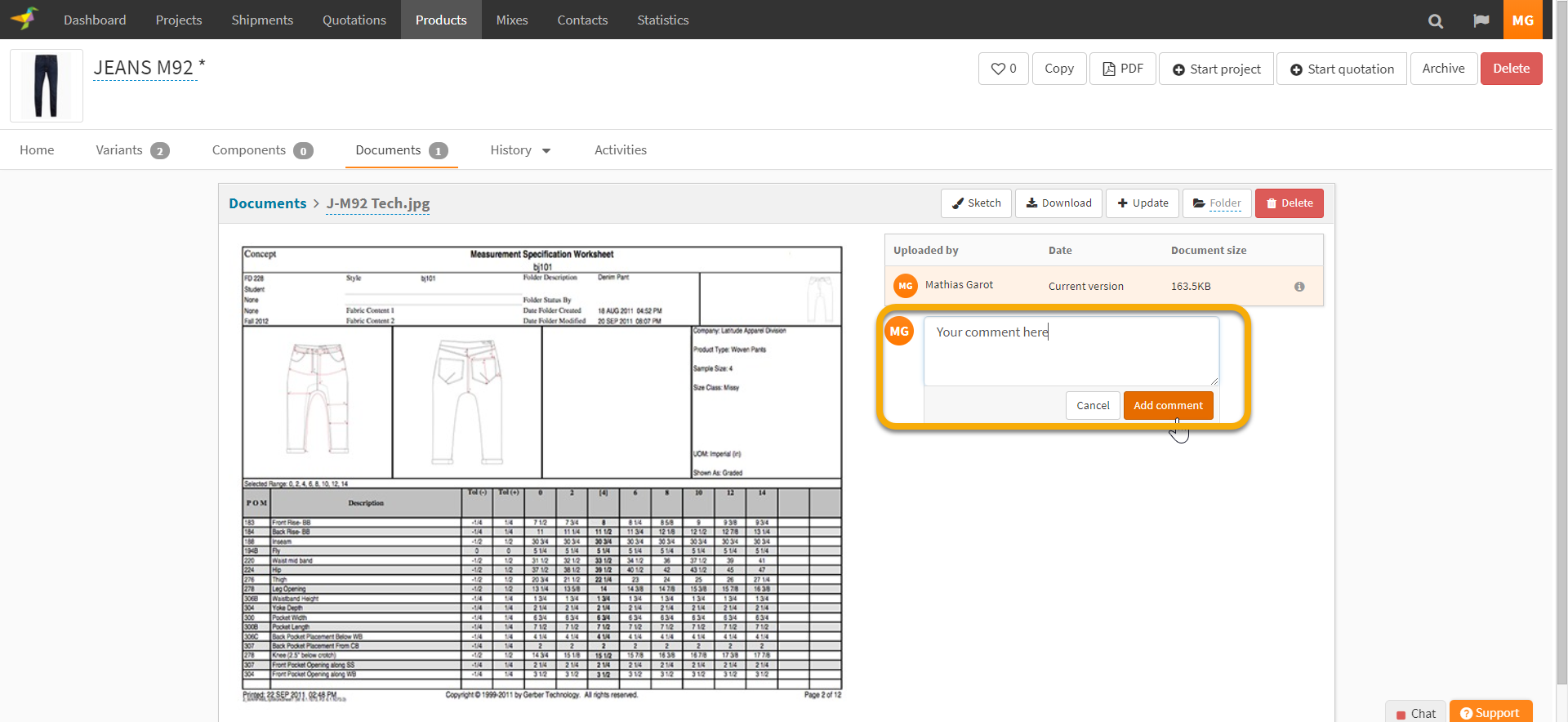
On a document
When a document has been shared with you on a project line, you will be able to comment on it if needed. Comments on documents are listed in the activity feed.
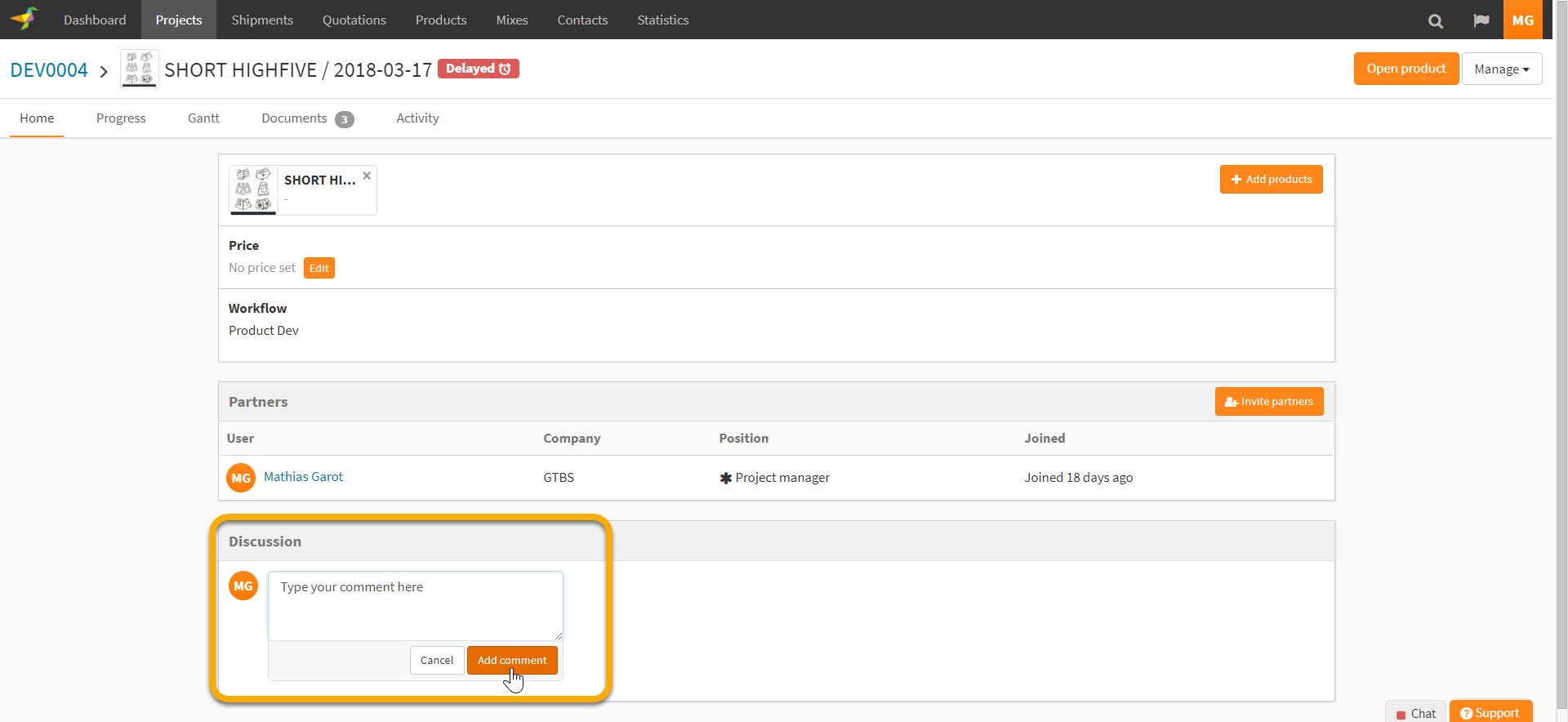
On a project line
To post a new comment on a given project line, use the dedicated space at the bottom of the project line home.
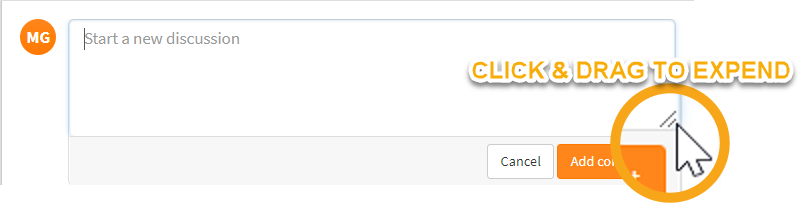
Expand the writing zone
For your convenience when writing a long comment on a project line or checkpoint, you can expand the writing zone by clicking on the expand icon.
Visualize a new comment
Activity feed of a project line gives you details about the comment related object (project line, checkpoint or document). Clicking on the name of the related checkpoint or document will open the comment on the related object (checkpoint details or document).
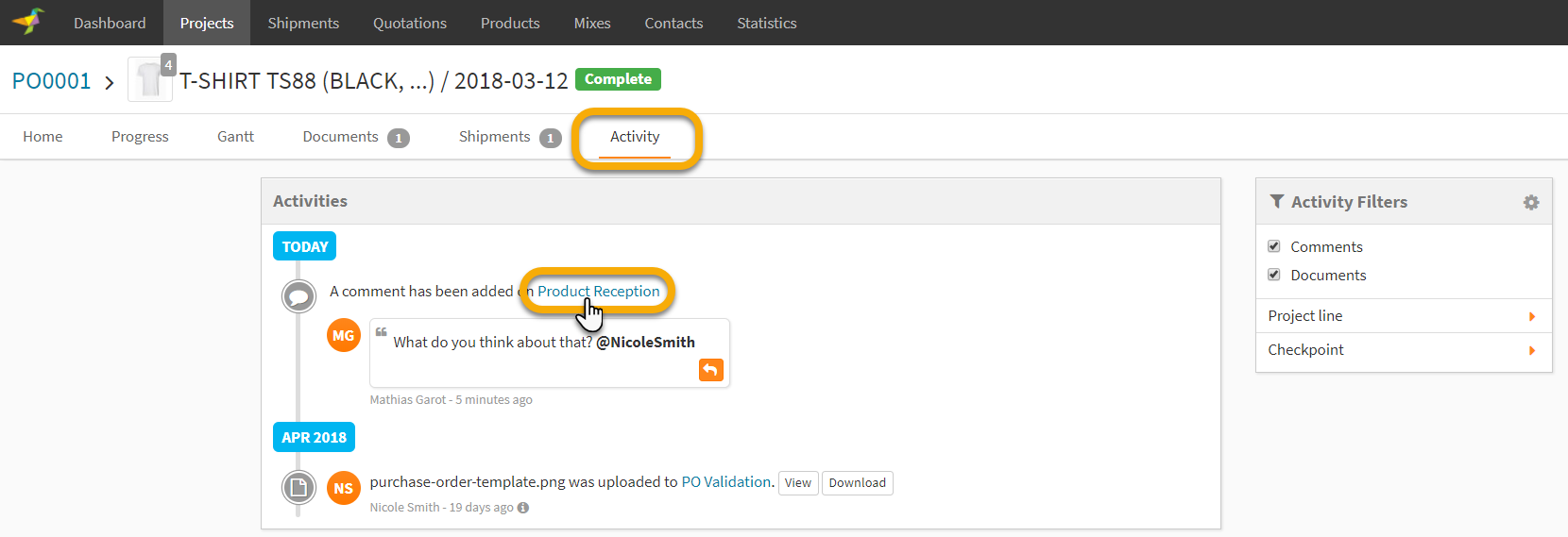
For more information on the activity feed, please see the related article.
When a new comment is added you are notified as partner of the project
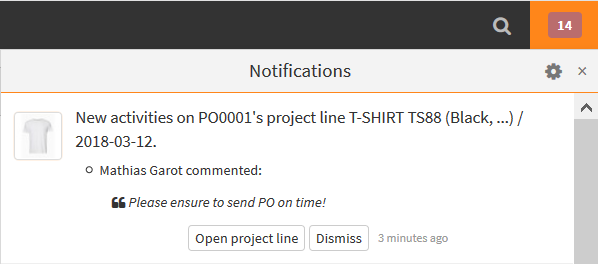
Note: Comment icons on the project line home gives precision about the number of comments that have been added to each checkpoint.
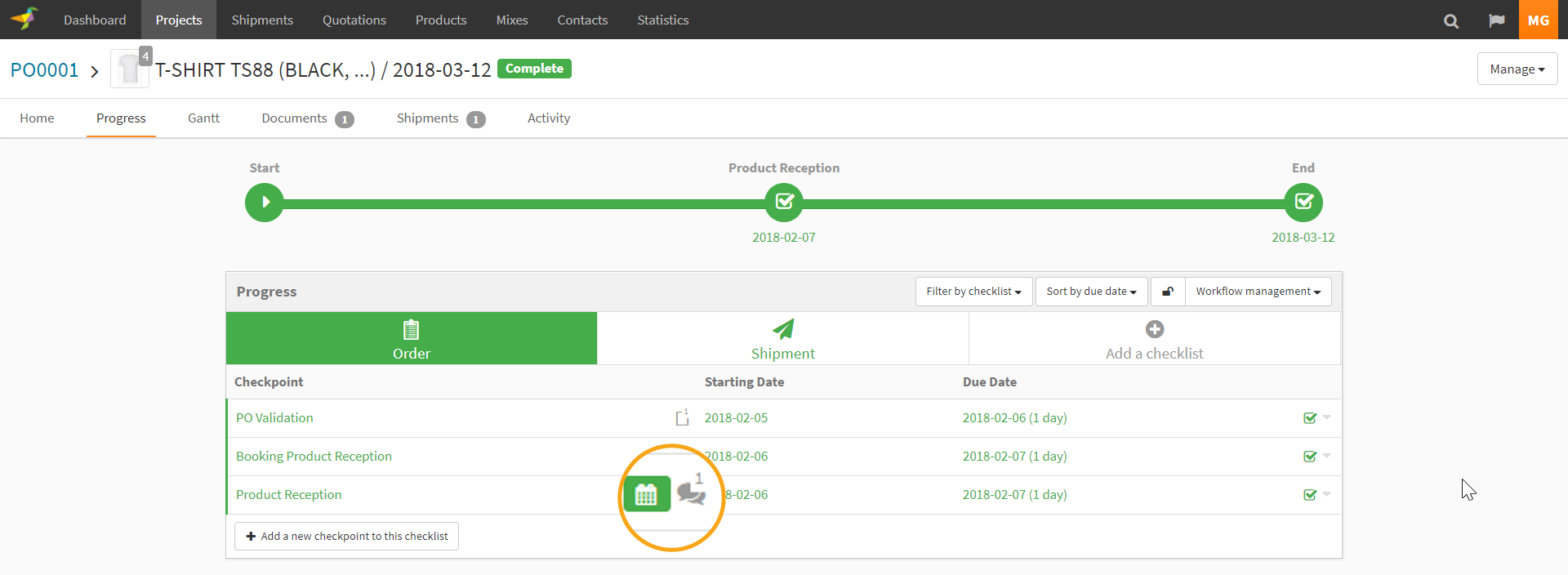
Who can see comments
On products - documents
All people that can see a product can access to the comments made, and make comments on product
On projects
All project partners can access comment and make comment
Reply to a comment
Click on the arrow icon in the right bottom corner to reply to a comment.

The reply will have the same privacy as the initial comment.
Mention a partner in a comment
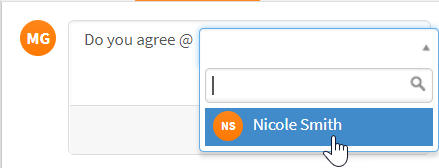
Type "@" to mention a partner in a comment. The mentioned partner will receive a specific notification.
A comment including a mention will be visible by all the partners set by the comment privacy.
0 Comments